Setup: |
|---|
Andrew is a plumber who carries out plumbing repairs, maintenance and new installations. His customers contact him by phone when they need his help and he goes to the site to investigate. He charges an hourly rate plus the price of the parts he uses.
He is able to run his business using only his phone and a small portable printer(optional).
|
Sales Process: |
|---|
 When a customer calls, Andrew checks to see if the customer is already saved in EZBeanZ. If it is a new customer, he adds the customer including their email address and sets the credit limit to a suitable amount eg: 5000 with a settlement period of 7 days. When a customer calls, Andrew checks to see if the customer is already saved in EZBeanZ. If it is a new customer, he adds the customer including their email address and sets the credit limit to a suitable amount eg: 5000 with a settlement period of 7 days.
|
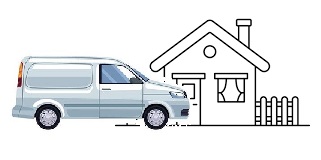 When Andrew arrives on the site, he investigates the problem and determines which parts are needed and the labour to charge the customer.
Andrew opens EZBeanZ, selects the customer, and refers to his inventory where he has saved the prices of the items that he uses regularly.
He creates an invoice quickly by tapping on the items needed including his labour. When Andrew arrives on the site, he investigates the problem and determines which parts are needed and the labour to charge the customer.
Andrew opens EZBeanZ, selects the customer, and refers to his inventory where he has saved the prices of the items that he uses regularly.
He creates an invoice quickly by tapping on the items needed including his labour.
|
 Now Andrew can inform the customer what the total amount will be and he asks the customer to make a payment of at least 50% before the work can begin. Now Andrew can inform the customer what the total amount will be and he asks the customer to make a payment of at least 50% before the work can begin.
The customer tells Andrew to proceed with the work. Andrew selects account and clicks on Issue Invoice.
The invoice instantly gets emailed to the customer in PDF format and his printer also prints a slip with the details and a QR code which the customer can scan to pay.
Using the QR code on the slip or the links on the invoice, the customer is given a variety of payment options including credit card, debit card, instant EFT and a variety of others.
Andrew then monitors the transactions table in EZBeanZ. When the customer has paid successfully, a transaction will appear and automatically allocate to the customer's account.
|
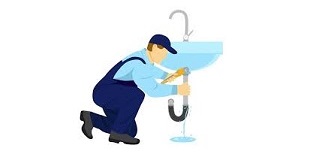 Now Andrew can start doing the work. If he needs additional items along the way, he informs the customer and creates another invoice with the extra items to add to the customer's account.
When he buys the parts from his supplier, fuel for his van or any other running costs, he captures the supplier invoice into EZBeanZ to keep track of his costs.
|
 Once the job is done. Andrew reminds the customer to pay the remaining balance. The customer will use the same QR code or payment links since they do not expire.
If necessary, Andrew will click on the button to automatically send the customer a pdf statement.
Once the job is done. Andrew reminds the customer to pay the remaining balance. The customer will use the same QR code or payment links since they do not expire.
If necessary, Andrew will click on the button to automatically send the customer a pdf statement.
The customer can pay using Mastercard or Visa debit or credit cards or a variety of other payment methods. EZBeanZ will automatically detect the payment and record it in the transactions table.
|
Setup: |
|---|
Angela owns a hair salon. Some of her customers contact her before-hand to make bookings but she also has walk-in customers who purchase products. She has 5 chairs in her salon and the hair stylists are paid according to their performance.
The salon has a B.Y.O.D. (bring your own device) policy, meaning that each hair stylist must bring their own phone to work.
The salon has wifi which is used by the stylists and they are all connected to the same system through EZBeanZ. The salon also has a thermal printer which is used when a customer requires a receipt. Angela has created 5 users in EZBeanZ. 1 for each stylist.
Additionally, she has added 5 customers simply named 'Chair 1' up to 'Chair 5' This is used to run a tab for each customer.
Angela has printed the QR code for each chair. This is laminated and displayed in a place where the customer can see it.
|
Sales Process: |
|---|
 When a customer arrives at the salon, Angela discusses the customer's needs and then introduces them to a hair stylist who offers them a chair. When a customer arrives at the salon, Angela discusses the customer's needs and then introduces them to a hair stylist who offers them a chair.
|
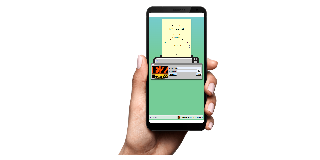 The stylist confirms the customer's request and proceeds. At this point, the stylist opens EZBeanZ on his/her mobile device, clicks on Invoices, selects the relevant chair and creates an invoice for 1 haircut by tapping on the item in the inventory. The stylist saves this invoice for later. The stylist confirms the customer's request and proceeds. At this point, the stylist opens EZBeanZ on his/her mobile device, clicks on Invoices, selects the relevant chair and creates an invoice for 1 haircut by tapping on the item in the inventory. The stylist saves this invoice for later.
|
 Now the stylist continues and provides the requested haircut.
Once completed, the stylist discusses any further needs the customer hay have. The stylist also makes product recommendations and the customer agrees to purchase some additional items. At this point, once again, the stylist uses EZBeanZ on his device and adds the items by tapping on them or sccanning the barcodes. Hence keeping a running total.
|
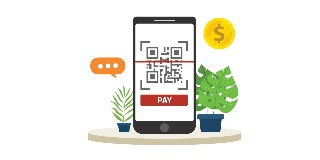 Once the customer is completely satisfied, the stylist will inform the customer of the total amount, and tap on Issue Invoice. The thermal printer will then print a slip for the customer. The customer then scans the QR code displayed on the wall using their own mobile phone in order to make payment. The same QR code can be seen on the printed till slip. Once the customer has made payment using their credit card, debit card or other options, the payment will reflect in EZBeanZ. This step normally takes a few seconds.
|
 Once the payment is confirmed, the owner and the stylist greet and bid farewell to the customer until next time.
|
|
Throughout the sales process, the owner can monitor each sale live from start to finish using EZBeanZ. Using this process, each salesperson can be monitored individually allowing the owner to maintain full control of each transaction.
|
Setup: |
|---|
Sandra does not own a business but she is hosting a jumble sale to get rid of some unwanted furniture etc.
She uses EZBeanZ to create an inventory list, email the invoices, and to allow her customers to pay her with their VISA or MASTERCARD debit and credit cards.
EZBeanZ helps Sandra to keep track of how much money she has raised, and which items she has sold.
|
Sales Process: |
|---|
First, before the sale starts, Sandra registers a business simply named Jumble Sale in EZBeanZ. Once logged in, she adds all of the items that are for sale in the inventory. She provides a description and price for each item and then attaches a price tag to the item. The tag also has the assigned product code written on it.
|
When someone offers to buy something. Sandra opens EZBeanZ on her smartphone, adds the customer with their first name and email, taps on the items in the Inventory and taps on Issue Invoice. Since the prices are negotiable, Sandra can also change the prices on the invoice first. Now the customer has been sent an invoice with a payment link and a QR code. Additionally, Sandra has also printed out a scan-to-pay QR code to put on display for people who don't have email addresses.
|
Now, Sandra monitors the transactions list in EZBeanZ. The customer can make payment using their credit card, debit card or other options. The payment will reflect automatically in EZBeanZ, normally after a few seconds.
|
When the payment is confirmed, the customer can leave with the items they have purchased.
|
|
Once everything is sold, Sandra uses EZBeanZ to create reports showing how much money she has raised.
|